> ## Documentation Index
> Fetch the complete documentation index at: https://help.redii.co/llms.txt
> Use this file to discover all available pages before exploring further.
# Add or update your beneficiaries
> Manage beneficiary details and allocation percentages from your retirement or deferred-plan account.
You can reach **Beneficiaries** in either of these places, when available to your account:
* **Retirement Benefits → Settings**, after retirement enrollment.
* Your employer's Deferred Compensation plan **Dashboard**.
Both locations show the same beneficiary list. An edit in one appears in the other; these are not separate lists for each plan.
## Add a person
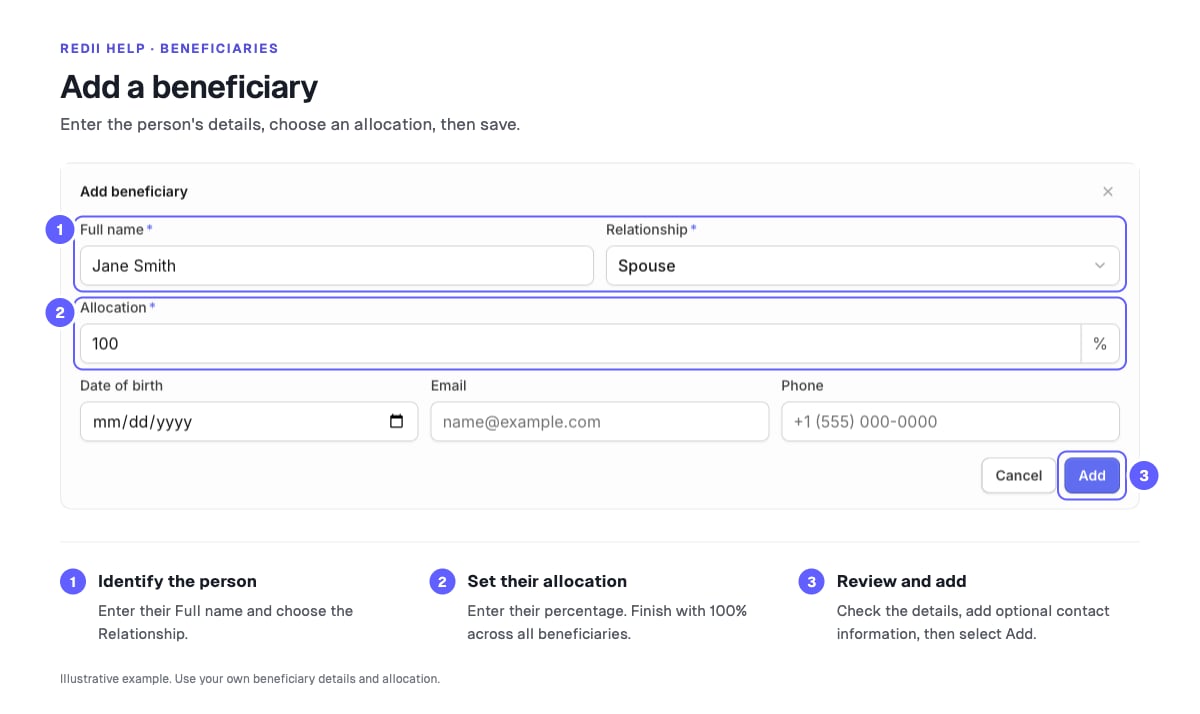
1. Select **Add beneficiary** when the list is empty, or **Add** when it already contains people.
2. Enter **Full name**, select **Relationship**, and enter an **Allocation** percentage.
3. Complete the other required fields shown. You can also record the available contact details.
4. Select **Add**, then check the person and percentage in the list.
The allocation summary shows how much of 100% you have assigned. For example, two people with 60% and 40% fill the allocation. This illustrates the total only; choose your own designations.
## Edit or remove a person
* Use the edit control beside the person's name, update the fields, and select **Save**.
* Use the remove control beside the name and confirm **Remove** to remove that person.
* Check the allocation summary again after either action.
If 100% is already allocated, **Add** is disabled. Reduce an existing person's percentage before adding someone else. An allocation cannot exceed the remaining percentage; finish with a total of 100% across the list.
## If the section or a save is unavailable
If retirement settings asks you to complete enrollment, [finish enrollment](/members/retirement/enroll) first. If you participate only in a deferred plan, use **Beneficiaries** on that plan's dashboard.
Read any validation message and correct the indicated fields. [Contact support](/contact-support) if saving still fails. Ask your plan administrator about how designations apply to your plan or how to report a death; editing this list does not submit a payout claim.